1. Background
Recently, one of my archi friends wants a tool to rename all the widnows. Mostly, he would delete some the wondows during the design stage, hence, he need a tool to reset the windows number to be continuous when finishing the drafting.
I think the job should be easy, what I need to do is just to select the windows out, and then rename them, quite similar as the pipe job posted before. But the data structure of Revit database is slightly different. Let’s look into this.
2. RENAMING
2.1. Family Hierachy
Firstly, we need to get all the windows object in the reivt document.
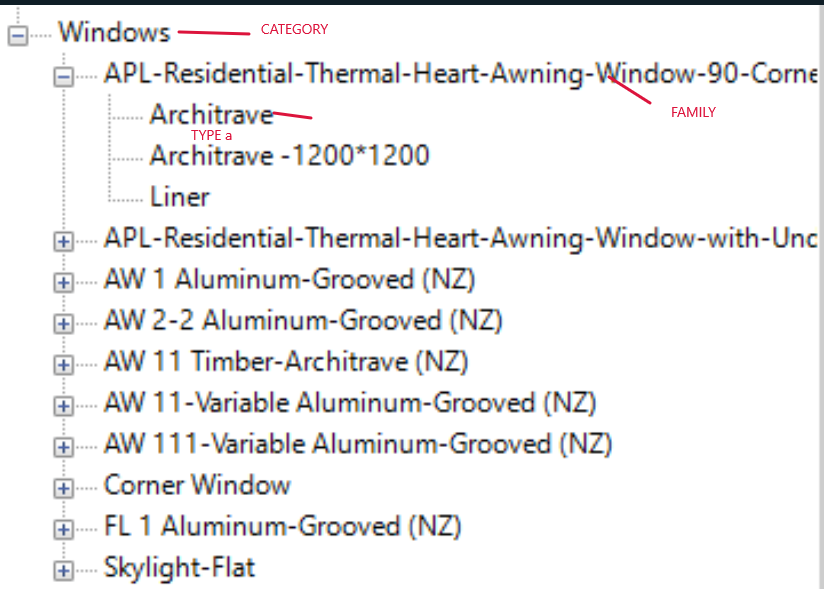
As we all know, the Reivt family hierarchy is as below
CATEGORY
FAMILY
TYPE(WALL TYPE, ROOF TYPE)
WALLFamilySymbol
INSTANCE
2.2. Selection
OfCategory
FamilySymbol, FamilyInstance
OfClass
FamilySymbol, FamilyInstance, and Family
2.2.1. Way1
collector.OfCategory(BuiltInCategory.OST_Windows).OfClass(typeof(FamilyInstance));
2.2.2. Way2
    ElementCategoryFilter elementCategoryFilter = new ElementCategoryFilter(BuiltInCategory.OST_Walls);
    ElementClassFilter elementClassFilter = new ElementClassFilter(typeof(FamilyInstance));
    collector.WherePasses(elementClassFilter).WherePasses(elementCategoryFilter);
2.3. Category Name
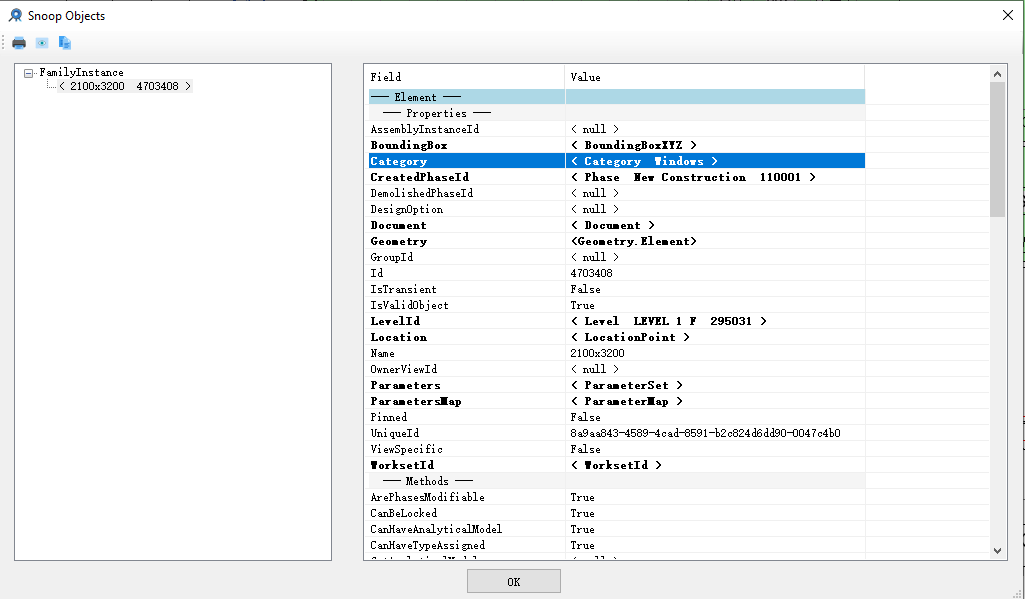
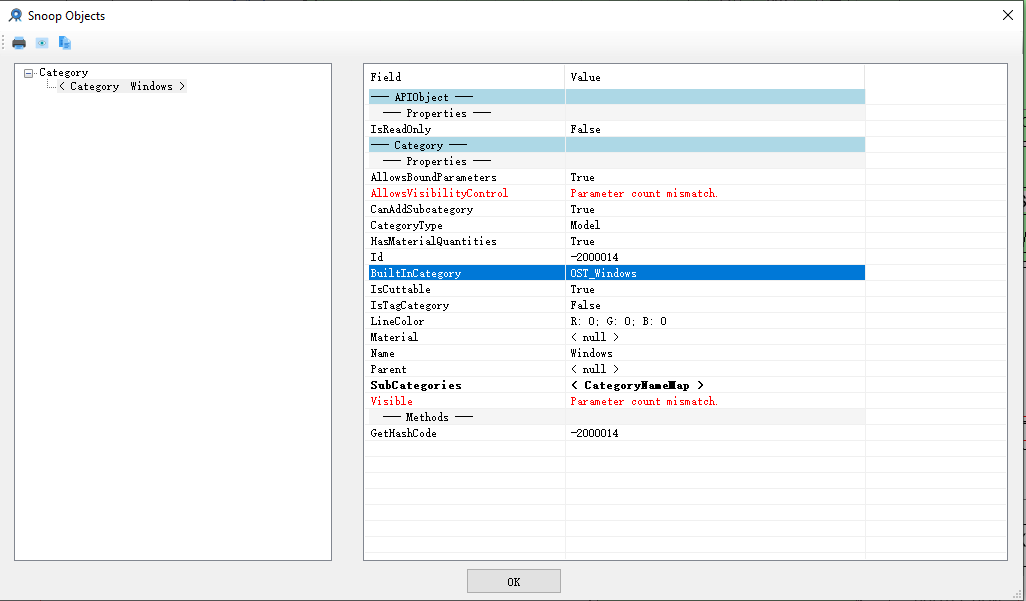
But how do we know the BuiltInCategory name is OST_Windows of the window. We can use the way below.
2.4. Name of property
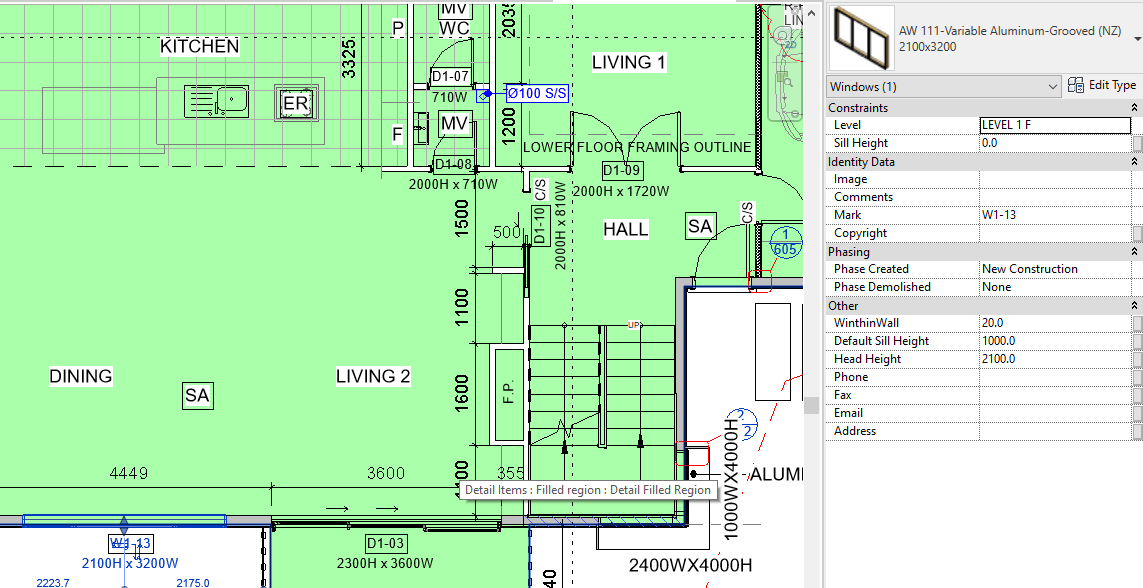
When selecting any window by tool Revit Lookup , we can tell that which property will be the tag name on the plan, then we only need to modify this property of the window to rename.
Element windowInstance = item as Element;
windowInstance.LookupParameter("Mark").Set(String.Format("EW-{0}", count));
2.5. Full CODE
    [Transaction(TransactionMode.Manual)]
    class ReNumberWindows : IExternalCommand
    {
        public Result Execute(ExternalCommandData commandData, ref string message, ElementSet elements)
        {
            //1. Select the interactive document
            UIDocument uidoc = commandData.Application.ActiveUIDocument;
            //database document
            Document doc = commandData.Application.ActiveUIDocument.Document;

            //2 create collector
            FilteredElementCollector collector = new FilteredElementCollector(doc);
            //filter to get the Window element

            //Selection
            collector.OfCategory(BuiltInCategory.OST_Windows).OfClass(typeof(FamilyInstance));//FamilyInstance if it is a tree


            int count = 0;

            using (Transaction t = new Transaction(doc, "ClearMark"))
            {
                t.Start();
                foreach(var item in collector)
                {
                    if (item is Element)
                    {
                        count += 1;
                        Element windowInstance = item as Element;
                        windowInstance.LookupParameter("Mark").Set(String.Format("EW-{0}", count));
                    }
                }
                t.Commit();
            }

            TaskDialog.Show("Result", String.Format("{0} windows have been renamed", count));

            return Result.Succeeded;
        }

    }
3. Summary
Most of the objects can be found and modified from this way, and Dynamo can achieve the same goal.
Next time, I will analyze how to modify the revision of the sheet, which I didnot find a way in Dynamo.
4. Reference
https://github.com/jeremytammik/RevitLookup
http://help.autodesk.com/view/RVT/2019/ENU/?guid=Revit_API_Revit_API_Developers_Guide_html